

Tutorials on tech, research, and more
Do you need help with your computer, laptop, mobile device, or dealing with some software? Ask the Mira Costa Geeks for help. Inquire at the library to set a help appointment, or fill out this request form. More information about the Geeks.
Making Movies
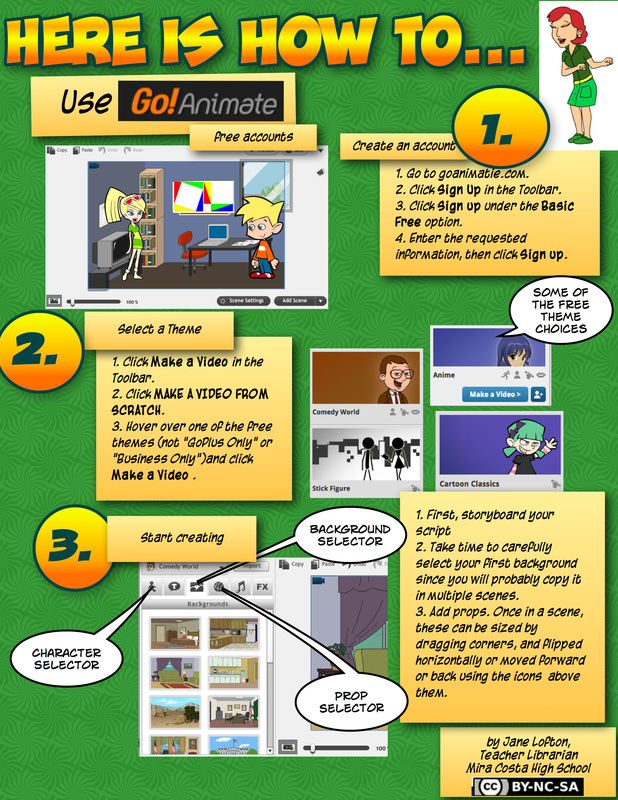
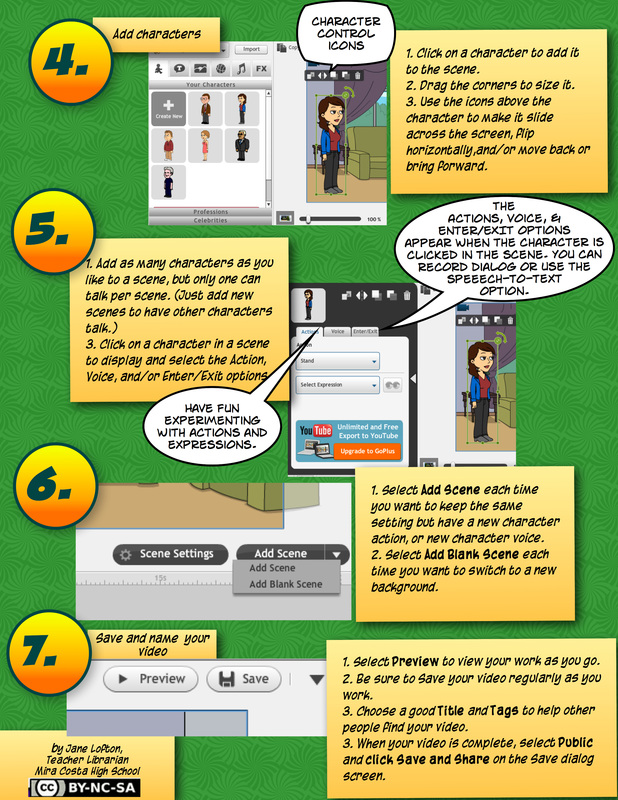
Two great options for making animated videos are GoAnimate and Powtoon. For live action, the library computers have iMovie. Please be sure to talk to Mrs. Lofton before starting an iMovie project. You need to use the Student computer account not the Guest account, or your files will be lost if the computer is logged out. A good cloud-based alternative is Wevideo. You cannot upload directly to YouTube form a free Wevideo account, but you can export to your Google Drive and upload from there.
Do you need help with your computer, laptop, mobile device, or dealing with some software? Ask the Mira Costa Geeks for help. Inquire at the library to set a help appointment, or fill out this request form. More information about the Geeks.
Making Movies
Two great options for making animated videos are GoAnimate and Powtoon. For live action, the library computers have iMovie. Please be sure to talk to Mrs. Lofton before starting an iMovie project. You need to use the Student computer account not the Guest account, or your files will be lost if the computer is logged out. A good cloud-based alternative is Wevideo. You cannot upload directly to YouTube form a free Wevideo account, but you can export to your Google Drive and upload from there.
Avatars
Avatars are a fun way to represent yourself online while still protecting your identity. Here are a few of many sites you can use to create an avatar:
 The tektek site lets you create cute or fanciful avatars. |
 Manga.com offers head-shot avatars |
 Build Your Wild Self with animal features. |
More avatar creating sites, courtesy of Brooke Ahrens:
|
Google Drive
Want to avoid emailing documents back and forth to work on home and school computers? Want to share documents with classmates for easy collaborating? Then, be sure to check out Google Drive, a great way to store your document, presentation, spreadsheet, and other files in "the cloud" and share them with others. All MCHS students have Google Apps for Education (GAFE) accounts. Please take advantage of them. Ask at the library for help activating your account. How to Create a non-GAFE Google Drive Account (pdf file) How to Create & Share a Google Doc (pdf file) How to Video Creating Images/Telling Stories
Wordle.net A great tool for creating word clouds or mosaics (like the one at the top of this page). To save images, on a PC, use Alt+Print Screen, then paste into Paint or any other image editing software to crop. On a Mac, you can use Cmd+Shift+4 to save your image as a .png file. You can also save your image to the Public Gallery. Please DON'T print directly from the image page; it doesn't work. Use the Print button below the image. Imagechef.com is a great place to make all sorts of customized images and signs like this one:  Be sure to check Flickr.com for images and Flickrcc.bluemountain.net to easily limit your search to Creative Commons-licensed images. Click here for more help with images.
Storytelling Tools/Ideas Try these tools (examples are at the bottom of the page)
Prezi.com is a great, completely online alternative to PowerPoint See the VoiceThread example below. See the ZooBurst example below. Also try Xtranormal.com and Goanimate.com GoAnimate Tutorial Videos Animoto.com Lots more digital storytelling tools Animoto makes movie making easy. Here's an example:
Create your own video slideshow at animoto.com. |
Learn about Web 2.0 Tools
Want to learn about Web 2.0 Tools? Check out the Teen Learning 2.0 and Tools2Create Tutorials from California School Library Association. And ask Mrs. Lofton for more information; she was one of the authors of the latest edition. :) And please feel free to email her for help, even over the summer. |
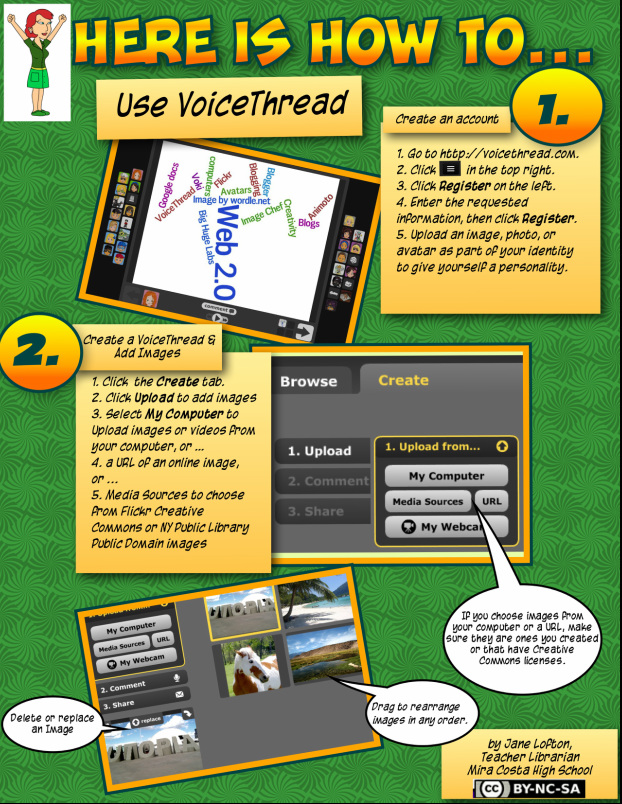

Zooburst is a great tool to try:
Library Orientations
GoAnimate.com: MCHS Library Orientation Video by Jane Lofton
Like it? Create your own at GoAnimate.com. It's free and fun!
Like it? Create your own at GoAnimate.com. It's free and fun!

| orientationscavengerhunt.pdf |
Help with Tech Issues
Using Library iMacs:
To use the library iMacs, just use the Guest account. No password is required. Note that, while you can save files on a computer, the storage is only temporary. Any files will be deleted the next time the computer is logged out. Be sure to upload files to the cloud using Google Drive, Dropbox, or another cloud tool, emailing the file to yourself, or copying it to a flash drive.
School PC Computer Logins
username: mc.2012
password: mustangs.12
Dealing with Newer Document Formats, or How to Solve the "Help! The Computer Can't Read My File" Problem
To use the library iMacs, just use the Guest account. No password is required. Note that, while you can save files on a computer, the storage is only temporary. Any files will be deleted the next time the computer is logged out. Be sure to upload files to the cloud using Google Drive, Dropbox, or another cloud tool, emailing the file to yourself, or copying it to a flash drive.
School PC Computer Logins
username: mc.2012
password: mustangs.12
Dealing with Newer Document Formats, or How to Solve the "Help! The Computer Can't Read My File" Problem